
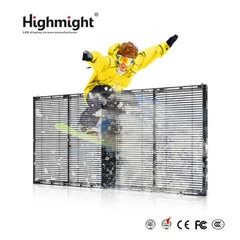


Hey there! As a supplier of LED crystal film screens, I often get asked about how to adjust the brightness of these nifty displays. So, I thought I'd put together this blog post to share some tips and tricks on getting the perfect brightness for your LED crystal film screen.
First off, let's talk about why adjusting the brightness is so important. Whether you're using the screen for a retail store window display, a museum exhibit, or a corporate event, the right brightness can make all the difference. Too bright, and it can be blinding and distracting. Too dim, and your content might not be visible enough. So, finding that sweet spot is key.
Understanding the Basics
Before we dive into the adjustment methods, it's important to understand a bit about how LED crystal film screens work. These screens are made up of tiny LED lights embedded in a thin, transparent film. The brightness of the screen is determined by the amount of power supplied to these LEDs. The more power, the brighter the screen.


Most LED crystal film screens come with a built - in brightness control system. This system allows you to adjust the brightness level according to your needs. Some screens even have sensors that can automatically adjust the brightness based on the ambient light in the room.
Manual Brightness Adjustment
The most straightforward way to adjust the brightness of your LED crystal film screen is through the manual control settings. Most screens come with a remote control or a control panel that allows you to access the brightness settings.
- Access the Menu: Use the remote control or the control panel to access the screen's menu. Look for an option like "Brightness", "Display Settings", or something similar.
- Adjust the Level: Once you're in the brightness settings, you'll usually see a slider or a numerical value that represents the brightness level. You can use the arrow keys on the remote or the buttons on the control panel to increase or decrease the brightness. Move the slider to the right to make the screen brighter, or to the left to make it dimmer.
- Preview and Fine - Tune: As you adjust the brightness, take a moment to preview how it looks. Stand at the same distance and angle as your intended audience. Make small adjustments until you're happy with the result.
Automatic Brightness Adjustment
Many modern LED crystal film screens come with an automatic brightness adjustment feature. This feature uses ambient light sensors to detect the amount of light in the surrounding environment and adjusts the screen brightness accordingly.
- Enable the Feature: To use this feature, you'll need to enable it in the screen's settings. Look for an option like "Auto Brightness", "Ambient Light Sensor", or something similar.
- Calibration: Some screens may require calibration to ensure accurate automatic adjustment. Follow the instructions in the user manual to calibrate the ambient light sensor. This usually involves placing the screen in a well - lit area and then a dim area to allow the sensor to learn the appropriate brightness levels.
- Benefits: The advantage of automatic brightness adjustment is that it saves you the hassle of constantly adjusting the brightness as the lighting conditions change. It also helps to conserve energy by reducing the brightness when there's enough ambient light.
Software - Based Brightness Adjustment
If your LED crystal film screen is connected to a computer or a media player, you may also be able to adjust the brightness through software.
- Operating System Settings: On a computer, you can usually adjust the screen brightness through the operating system settings. For example, on Windows, you can go to the "Display" settings in the Control Panel and use the brightness slider. On a Mac, you can use the brightness keys on the keyboard or adjust the settings in the "Displays" section of the System Preferences.
- Media Player Settings: If you're using a media player to display content on the screen, some media players also have their own brightness adjustment settings. Check the settings menu of your media player to see if this option is available.
Factors to Consider
When adjusting the brightness of your LED crystal film screen, there are a few factors you should keep in mind:
- Ambient Light: The amount of ambient light in the room will have a big impact on the optimal brightness setting. In a brightly lit room, you'll need a higher brightness level to make the screen visible. In a dimly lit room, a lower brightness level will be sufficient.
- Content Type: The type of content you're displaying also matters. For example, if you're showing high - contrast images or videos with a lot of bright colors, you may need a higher brightness level. On the other hand, if you're displaying text - based content, a lower brightness level may be more comfortable for the eyes.
- Viewing Distance and Angle: The distance and angle from which your audience will be viewing the screen are important. If the screen is meant to be viewed from a long distance, you may need a higher brightness level. Similarly, if the screen is at an angle, you may need to adjust the brightness to ensure even visibility.
Troubleshooting
Sometimes, you may encounter issues when trying to adjust the brightness of your LED crystal film screen. Here are some common problems and solutions:
- No Brightness Adjustment Option: If you can't find the brightness adjustment option in the menu, check the user manual. It's possible that the option is hidden or requires a specific combination of buttons to access.
- Inaccurate Automatic Adjustment: If the automatic brightness adjustment feature isn't working correctly, make sure the ambient light sensor isn't blocked. Clean the sensor if it's dirty, and try recalibrating it according to the instructions in the user manual.
- Uneven Brightness: If you notice that the brightness is uneven across the screen, it could be due to a hardware issue. Contact your screen supplier or a professional technician for further assistance.
Conclusion
Adjusting the brightness of your LED crystal film screen is a crucial step in getting the most out of your display. Whether you choose to use manual, automatic, or software - based adjustment methods, taking the time to find the right brightness level will enhance the visibility and impact of your content.
If you're in the market for an LED Transparent Crystal Film Screen, or if you have any questions about brightness adjustment or other features, don't hesitate to reach out. We're here to help you make the best choice for your needs. Contact us to start a conversation about your procurement requirements and let's find the perfect LED crystal film screen for you.
References
- LED Crystal Film Screen User Manuals
- Industry Research on LED Display Technologies