


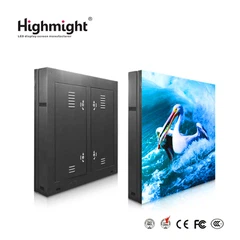



Adjusting the settings of an indoor LED display module is a crucial process that can significantly impact the quality and performance of your display. As a leading supplier of Indoor LED Display Module, we understand the importance of getting these settings right. In this blog post, we will guide you through the steps to adjust the settings of an indoor LED display module effectively.
Understanding the Basics of Indoor LED Display Modules
Before diving into the settings adjustment, it's essential to have a basic understanding of indoor LED display modules. These modules are composed of multiple LED lights arranged in a matrix. They are designed to provide high - brightness, high - contrast, and accurate color reproduction for indoor environments. Our High - quality LED Module is engineered with advanced technology to ensure optimal performance.
The key components of an indoor LED display module include the LED chips, driver ICs, power supply, and control system. The LED chips are responsible for emitting light, the driver ICs control the current and voltage supplied to the LEDs, the power supply provides the necessary electrical energy, and the control system manages the display content and settings.
Pre - adjustment Preparations
- Inspect the Module: Before making any settings adjustments, carefully inspect the indoor LED display module for any physical damage. Check for loose connections, broken LEDs, or signs of overheating. If you notice any issues, it's best to address them before proceeding with the settings adjustment.
- Gather Necessary Tools: You will need a computer with the appropriate control software installed, a data cable to connect the display module to the computer, and a power source. Make sure the control software is compatible with your specific indoor LED display module model.
- Familiarize Yourself with the Control Software: Spend some time exploring the control software. Understand its interface, menu options, and functions. Most control software allows you to adjust parameters such as brightness, contrast, color temperature, and display mode.
Adjusting Brightness
Brightness is one of the most important settings for an indoor LED display module. It determines how clearly the content on the display can be seen. The ideal brightness level depends on the ambient light conditions of the installation environment.
- Measure the Ambient Light: Use a light meter to measure the ambient light level in the room where the display will be installed. Different indoor environments have different light requirements. For example, a brightly lit office may require a higher brightness setting compared to a dimly lit conference room.
- Access the Brightness Setting in the Control Software: Open the control software and navigate to the brightness adjustment section. You can usually adjust the brightness using a slider or by entering a specific value. Start with a lower brightness setting and gradually increase it until the display is clearly visible without being too bright or causing glare.
- Consider Automatic Brightness Adjustment: Some indoor LED display modules support automatic brightness adjustment. This feature uses a light sensor to detect the ambient light level and automatically adjust the display brightness accordingly. Enabling this feature can help save energy and ensure optimal visibility at all times.
Adjusting Contrast
Contrast refers to the difference between the brightest and darkest parts of an image on the display. A high - contrast display can make the content more vivid and easier to read.
- Display a Test Image: In the control software, select a test image that contains a wide range of brightness levels, such as a grayscale image or a color gradient. This will help you accurately assess the contrast of the display.
- Adjust the Contrast Setting: Locate the contrast adjustment option in the control software. Similar to the brightness adjustment, you can use a slider or enter a specific value. Increase the contrast gradually until the details in the darkest and brightest areas of the test image are clearly visible. However, be careful not to over - adjust the contrast, as this can cause the image to look washed out or lose details.
Adjusting Color Temperature
Color temperature affects the color appearance of the display. A lower color temperature results in a warmer, more yellowish color, while a higher color temperature produces a cooler, bluer color.
- Understand the Color Temperature Scale: Color temperature is measured in Kelvin (K). Common color temperature settings for indoor LED displays range from 2700K (warm white) to 6500K (cool white).
- Select the Appropriate Color Temperature: Consider the intended use of the display and the color preferences of the viewers. For example, a warm color temperature may be more suitable for a cozy restaurant environment, while a cool color temperature may be preferred in a modern office setting. Use the control software to select the desired color temperature.
- Fine - tune the Color Balance: In addition to adjusting the color temperature, you may also need to fine - tune the color balance. This involves adjusting the red, green, and blue (RGB) levels to ensure accurate color reproduction. Most control software provides options for RGB adjustment. Use a color - calibrated test image to make these adjustments.
Adjusting Display Mode
Indoor LED display modules support different display modes, such as static display, video display, and scrolling text display.


- Determine the Display Content: Decide what type of content you will be displaying on the module. If you plan to show static images, a static display mode may be sufficient. For dynamic content like videos or live feeds, a video display mode is required.
- Select the Appropriate Display Mode in the Control Software: Navigate to the display mode section in the control software and choose the mode that matches your content. You may also need to adjust other settings such as resolution, refresh rate, and aspect ratio depending on the display mode.
- Test the Display Mode: After selecting the display mode, test it with your actual content. Make sure the content is displayed correctly and there are no issues such as flickering or distortion.
Advanced Settings Adjustment
- Gamma Correction: Gamma correction is a process that adjusts the brightness of the display to match the human eye's perception. It can improve the overall image quality by enhancing the details in the mid - tones and shadows. In the control software, look for the gamma correction option and adjust the gamma value according to your preference.
- Dimming Control: Dimming control allows you to reduce the brightness of the display during off - peak hours or in low - light environments. This can help save energy and extend the lifespan of the LEDs. Set up the dimming schedule in the control software based on your needs.
- Pixel Correction: Pixel correction is used to compensate for any variations in the brightness or color of individual pixels. This ensures a uniform and consistent display. Most modern indoor LED display modules support pixel correction. Use the control software to perform pixel correction periodically.
Troubleshooting and Maintenance
Even after adjusting the settings correctly, you may encounter some issues with the indoor LED display module. Here are some common problems and their solutions:
- Flickering Display: Flickering can be caused by a loose connection, incorrect refresh rate settings, or a faulty power supply. Check the connections, adjust the refresh rate in the control software, and inspect the power supply for any issues.
- Color Inconsistencies: Color inconsistencies may occur due to improper color calibration or a malfunctioning LED chip. Re - calibrate the color settings using the control software. If the problem persists, contact our technical support team for further assistance.
- Dead Pixels: Dead pixels are non - functioning LEDs on the display. While a small number of dead pixels may be normal, a large number can affect the display quality. If you notice dead pixels, try using the pixel correction function in the control software. If the problem cannot be resolved, contact us for replacement options.
Regular maintenance is also essential to keep your indoor LED display module in good condition. Clean the display surface regularly using a soft, dry cloth to remove dust and dirt. Check the connections and power supply periodically to ensure they are secure and functioning properly.
Conclusion
Adjusting the settings of an indoor LED display module is a multi - step process that requires careful attention to detail. By following the steps outlined in this blog post, you can ensure that your display provides high - quality, accurate, and visually appealing content. As a trusted supplier of Indoor LED Display Module, we are committed to providing you with the best products and support. If you have any questions or need further assistance with adjusting the settings of your indoor LED display module, please feel free to contact us for procurement and further discussions.
References
- LED Display Technology Handbook.
- Control Software User Manual for Indoor LED Display Modules.


