





As a supplier of LED floor tile screens, I often receive inquiries from customers about how to connect these innovative displays to a media player. In this blog post, I'll walk you through the process step by step, ensuring that you can set up your LED floor tile screen system with ease.
Understanding the Basics
Before we dive into the connection process, it's important to understand the key components involved. An LED floor tile screen is a modular display system made up of individual tiles that can be arranged in various configurations to create a large, seamless display. A media player, on the other hand, is a device that stores and plays media content, such as videos, images, and animations, onto the screen.
Step 1: Gather Your Equipment
To connect your LED floor tile screen to a media player, you'll need the following equipment:
- LED floor tile screen: Make sure you have the correct number of tiles and that they are compatible with your media player. You can explore our range of Color LED Floor Screen, LED Floor Tile Advertising Display, and High Brightness LED Floor Screen for options.
- Media player: Choose a media player that supports the video formats and resolutions you want to display. Popular media players include Android-based media players, Windows media players, and dedicated media players designed for LED displays.
- Video cables: Depending on the output ports of your media player and the input ports of your LED floor tile screen, you'll need the appropriate video cables. Common types of video cables include HDMI, DVI, and VGA.
- Power cables: Ensure that you have enough power cables to connect both the LED floor tile screen and the media player to a power source.
- Control software: Some LED floor tile screens require specific control software to manage the display settings and content playback. Check the manufacturer's instructions to see if you need to install any software on your media player.
Step 2: Prepare the LED Floor Tile Screen
Before connecting the screen to the media player, you need to assemble and configure the LED floor tile screen. Here's how:
- Assemble the tiles: Follow the manufacturer's instructions to assemble the LED floor tiles into the desired configuration. Make sure the tiles are securely connected and aligned properly.
- Power on the screen: Connect the power cables to the LED floor tile screen and plug them into a power source. Turn on the screen and check if all the tiles are working properly.
- Configure the display settings: Use the control software or the built-in menu on the LED floor tile screen to configure the display settings, such as resolution, brightness, contrast, and color temperature. Adjust these settings to achieve the best visual效果.
Step 3: Connect the Media Player to the LED Floor Tile Screen
Now that the LED floor tile screen is ready, it's time to connect the media player. Here are the steps:

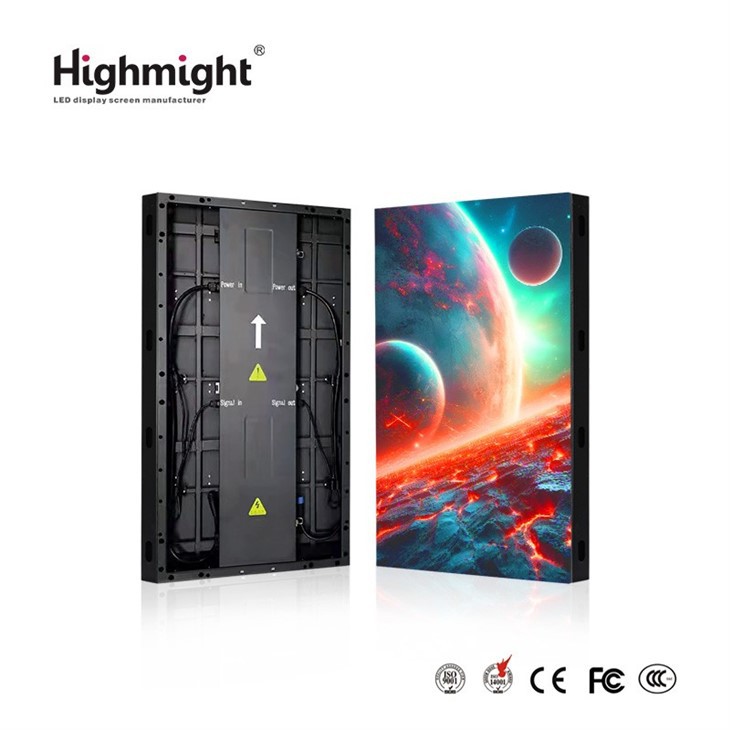
- Identify the video output ports: Locate the video output ports on your media player. Common video output ports include HDMI, DVI, and VGA.
- Identify the video input ports: Find the video input ports on your LED floor tile screen. Make sure the input ports are compatible with the output ports of your media player.
- Connect the video cables: Use the appropriate video cables to connect the media player to the LED floor tile screen. For example, if your media player has an HDMI output port and your LED floor tile screen has an HDMI input port, connect the two using an HDMI cable.
- Connect the power cables: Plug the power cable of the media player into a power source and turn on the media player.
Step 4: Configure the Media Player
After connecting the media player to the LED floor tile screen, you need to configure the media player to display the content correctly. Here's what you need to do:
- Set the video output resolution: On the media player, go to the display settings and set the video output resolution to match the resolution of the LED floor tile screen. This will ensure that the content is displayed at the optimal quality.
- Select the correct video input source: On the LED floor tile screen, use the control software or the built-in menu to select the correct video input source. This will tell the screen which input port to receive the video signal from.
- Test the connection: Play some media content on the media player and check if it is displayed correctly on the LED floor tile screen. If there are any issues, such as no signal, incorrect aspect ratio, or color distortion, adjust the settings accordingly.
Step 5: Manage the Content
Once the connection is established and the media player is configured, you can start managing the content on the LED floor tile screen. Here are some tips:
- Upload media files: Use a USB drive, an SD card, or a network connection to upload media files, such as videos, images, and animations, to the media player.
- Create playlists: Organize your media files into playlists and set the playback order and duration. This will allow you to display different content at different times.
- Schedule content playback: Use the scheduling function on the media player to set specific times for the content to be played. This is useful for advertising, events, and other applications.
- Update the content regularly: Keep your audience engaged by updating the content on the LED floor tile screen regularly. You can add new videos, images, and animations to keep the display fresh and interesting.
Troubleshooting
If you encounter any issues during the connection process or while using the LED floor tile screen, here are some common troubleshooting tips:
- Check the connections: Make sure all the cables are securely connected and that there are no loose connections.
- Check the power supply: Ensure that both the LED floor tile screen and the media player are receiving power. Check the power cables and the power outlets.
- Check the display settings: Review the display settings on both the media player and the LED floor tile screen to make sure they are configured correctly.
- Update the control software: If you are using control software to manage the LED floor tile screen, make sure it is up to date. Check the manufacturer's website for the latest software updates.
- Contact technical support: If you are still experiencing issues after trying the above troubleshooting steps, contact the technical support team of your LED floor tile screen supplier or the media player manufacturer for further assistance.
Conclusion
Connecting an LED floor tile screen to a media player is a straightforward process that can be completed with a few simple steps. By following the guidelines outlined in this blog post, you can set up your LED floor tile screen system quickly and easily. If you have any questions or need further assistance, please don't hesitate to contact us. We are a leading supplier of LED floor tile screens and can provide you with the best solutions for your display needs. Whether you are looking for a Color LED Floor Screen, an LED Floor Tile Advertising Display, or a High Brightness LED Floor Screen, we have the expertise and products to meet your requirements. Contact us today to discuss your project and explore our range of LED floor tile screen solutions.
References
- Manufacturer's instructions for LED floor tile screens and media players.
- Industry best practices for connecting LED displays to media players.


