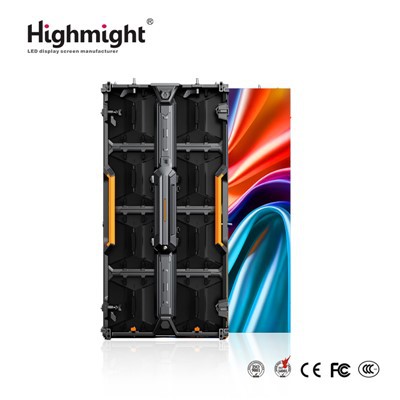



Hey there! I'm an outdoor LED display module supplier, and today I'm gonna share with you how to update the firmware of an outdoor LED display module. Firmware updates are super important as they can enhance the performance, add new features, and fix bugs of your LED display. So, let's dive right in!
Why Firmware Updates Matter
First off, you might be wondering why you even need to update the firmware. Well, think of it like getting the latest software for your phone. When you update your phone's software, it runs smoother, has new cool features, and is more secure. The same goes for your outdoor LED display module.
New firmware versions often come with improvements in image quality. You'll notice sharper colors, better contrast, and more vivid visuals. They can also optimize power consumption, which is great for long - term cost savings. Plus, if there were any glitches or bugs in the previous firmware, an update can fix them, ensuring your display runs without a hitch.
Pre - update Checks
Before you start the update process, there are a few things you need to do.
Check Compatibility
Make sure the new firmware is compatible with your specific outdoor LED display module. You can usually find this information on the manufacturer's website. If you're not sure, don't hesitate to reach out to us, your friendly outdoor LED display module supplier. We'll be more than happy to help you figure it out.
Backup Your Data
It's always a good idea to back up any important data on your display. This includes any custom settings, schedules, or content that you've uploaded. While firmware updates are generally safe, it's better to be safe than sorry. You can save your data to an external storage device or a cloud - based service.


Inspect the Hardware
Give your outdoor LED display module a quick once - over. Check for any physical damage, loose connections, or signs of wear and tear. A damaged module might not handle the firmware update properly, and you don't want to risk causing more problems.
The Update Process
Now that you've done your pre - update checks, it's time to start the actual update.
Download the Firmware
Head over to the manufacturer's website and find the latest firmware version for your outdoor LED display module. Make sure you download it from a trusted source to avoid any security risks. Once you've downloaded the firmware file, save it to a USB drive. Make sure the USB drive is formatted correctly; usually, FAT32 works well.
Prepare the Display
Turn off your outdoor LED display module. Then, insert the USB drive with the firmware file into the appropriate USB port on the module. Double - check that the USB drive is securely plugged in.
Start the Update
Power on the display. In most cases, the module will detect the new firmware on the USB drive automatically. It will then prompt you to start the update process. Follow the on - screen instructions carefully. The update might take some time, depending on the size of the firmware file and the speed of your module.
Monitor the Update
While the update is in progress, keep an eye on the display. You'll usually see a progress bar or some other indication of how far along the update is. Don't turn off the display or remove the USB drive during the update, as this could cause the update to fail and potentially damage the module.
Test the Display
Once the update is complete, remove the USB drive and let the display boot up. Check if the display is working properly. Look for any signs of errors, such as flickering, incorrect colors, or missing content. If you encounter any issues, try restarting the display. If the problem persists, contact us, and we'll assist you in troubleshooting.
Troubleshooting
Sometimes, things don't go as smoothly as we'd like during a firmware update. Here are some common issues and how to fix them.
Update Fails to Start
If the display doesn't detect the firmware on the USB drive, first check that the USB drive is inserted correctly and that the firmware file is in the right format. You can also try using a different USB drive or formatting the current one again.
Update Stops or Freezes
If the update stops or freezes, wait for a few minutes to see if it resumes on its own. If it doesn't, turn off the display, remove the USB drive, and try the update again. Make sure the display has a stable power supply during the update.
Display Malfunctions After Update
If the display isn't working properly after the update, it could be due to a compatibility issue. Try rolling back to the previous firmware version if possible. Contact us for further assistance, and we'll help you resolve the problem.
Our Energy - saving Outdoor LED Modules
At our company, we're not just about providing high - quality outdoor LED display modules; we're also committed to energy efficiency. Our Energy - saving Outdoor LED Modules are designed to consume less power without compromising on performance. They use the latest technology to deliver bright, clear visuals while reducing your energy costs.
Whether you're looking for a large - scale outdoor display for a stadium or a small - sized module for a local business, our Outdoor LED Display Module range has something for everyone.
Contact Us for Purchasing
If you're interested in our outdoor LED display modules or have any questions about firmware updates, don't hesitate to reach out. We're here to provide you with the best products and support. Whether you're a new customer or looking to upgrade your existing display, we can help you find the perfect solution.
References
- LED Display Manufacturer's Manuals
- Industry Best Practices for LED Display Maintenance and Firmware Updates