


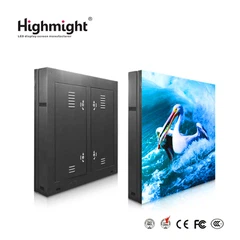

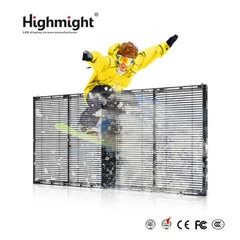


Hey there! As a supplier of large outdoor LED screens, I often get asked about how to upgrade the software of these bad boys. Upgrading the software of a large outdoor LED screen is crucial to ensure it functions at its best, delivers top - notch visuals, and stays up - to - date with the latest features. In this blog, I'll walk you through the steps to upgrade the software of a large outdoor LED screen.
Why Upgrade the Software?
First things first, let's talk about why you should even bother upgrading the software. Over time, software developers release updates to fix bugs, improve performance, and add new features. For your outdoor LED screen, this could mean better color accuracy, smoother video playback, and enhanced compatibility with different media formats.
Imagine you have an Outdoor LED Advertising Large Screen used for promoting events in a busy city center. An updated software might allow you to display high - resolution videos more efficiently, attracting more attention from passers - by. Or, if you're using a High Brightness LED Outdoor Screen, the software upgrade could optimize the brightness levels based on the time of day, saving energy while maintaining visibility.
Step 1: Check Compatibility
Before you start the upgrade process, it's essential to check if the new software is compatible with your LED screen. Different models of outdoor LED screens have different hardware configurations, and not all software upgrades will work with every screen.
You can usually find the compatibility information on the manufacturer's website. Look for the model number of your screen and search for the latest software version available for it. If you're not sure, don't hesitate to reach out to the manufacturer's support team. They can guide you on whether the upgrade is suitable for your specific screen.
Step 2: Backup Your Data
Once you've confirmed compatibility, the next step is to back up all your existing data. This includes any media files, playlists, and configuration settings stored on the screen's software. You don't want to lose all your carefully curated content during the upgrade process.
You can use an external storage device, such as a USB drive, to back up the data. Simply connect the USB drive to the screen's media player and follow the on - screen instructions to transfer the files. Make sure to double - check that all the important data has been successfully backed up before proceeding.
Step 3: Download the Software
After backing up your data, it's time to download the new software. Head over to the manufacturer's official website and find the download section for your screen's model. Look for the latest software version and click on the download link.
Depending on your internet speed, the download might take some time, especially if it's a large file. While waiting, you can prepare the necessary tools for the installation, such as a USB drive (if the software needs to be installed via USB) or a network cable (if the installation is done over the network).
Step 4: Prepare the Installation
Before installing the software, make sure your LED screen is in a stable environment. Turn off any other devices that might interfere with the installation process, such as nearby wireless routers or other electronic equipment.
If you're installing the software via a USB drive, format the USB drive to the appropriate file system (usually FAT32) to ensure compatibility. Then, copy the downloaded software file to the USB drive.
Step 5: Install the Software
Now comes the exciting part - installing the new software. The installation process can vary depending on the screen's model and the software itself.
If you're using a USB drive for installation, insert the USB drive into the screen's media player and turn on the screen. Follow the on - screen prompts to start the installation. The screen might restart a few times during the process, so don't panic.


If the installation is done over the network, connect the screen to a stable network and follow the manufacturer's instructions to initiate the installation. This might involve entering a specific IP address or using a dedicated software management tool.
Step 6: Test the Software
Once the installation is complete, it's time to test the new software. Power on the screen and check if all the functions are working correctly. Play some media files to see if the video and audio quality have improved. Check the color accuracy and brightness levels to ensure they meet your expectations.
If you encounter any issues, such as error messages or abnormal behavior, refer to the manufacturer's troubleshooting guide. You can also contact the support team for further assistance.
Step 7: Update Your Content
After successfully testing the software, it's a good idea to update your content to take full advantage of the new features. You might want to create new playlists, add high - resolution media files, or adjust the display settings.
For example, if the new software supports 3D content, you can start exploring 3D media options to make your LED Outdoor Full Color Screen even more eye - catching.
Step 8: Regularly Check for Updates
Upgrading the software is not a one - time thing. To keep your outdoor LED screen in top condition, it's important to regularly check for software updates. Set a reminder to visit the manufacturer's website every few months to see if there are any new updates available.
Regular updates can help you stay ahead of potential security threats, improve the screen's performance, and ensure compatibility with new media formats.
Conclusion
Upgrading the software of a large outdoor LED screen might seem like a daunting task, but if you follow these steps, it can be a smooth and rewarding process. By keeping your screen's software up - to - date, you can enhance its performance, attract more attention, and stay competitive in the market.
If you're in the market for a new outdoor LED screen or need further assistance with software upgrades, don't hesitate to reach out. We're here to help you make the most of your outdoor advertising investment. Whether you're looking for a High Brightness LED Outdoor Screen, an LED Outdoor Full Color Screen, or an Outdoor LED Advertising Large Screen, we've got you covered. Contact us today to start a conversation about your specific needs.
References
- Manufacturer's official website for outdoor LED screens
- Industry best practices for LED screen software upgrades


